

Project Detail

Hi, In this post I want to share my homelab experience install vRealize Log Insight 8.10 in vSphere 7 environment,
please advise and comment if you find any invalid information from my blog. Thank you
VMware vRealize Log Insight is a log management and analytics solution developed by VMware.
It is designed to help IT administrators and DevOps teams collect, analyze, and manage log data from various sources in a virtualized environment. (source: chatgpt)
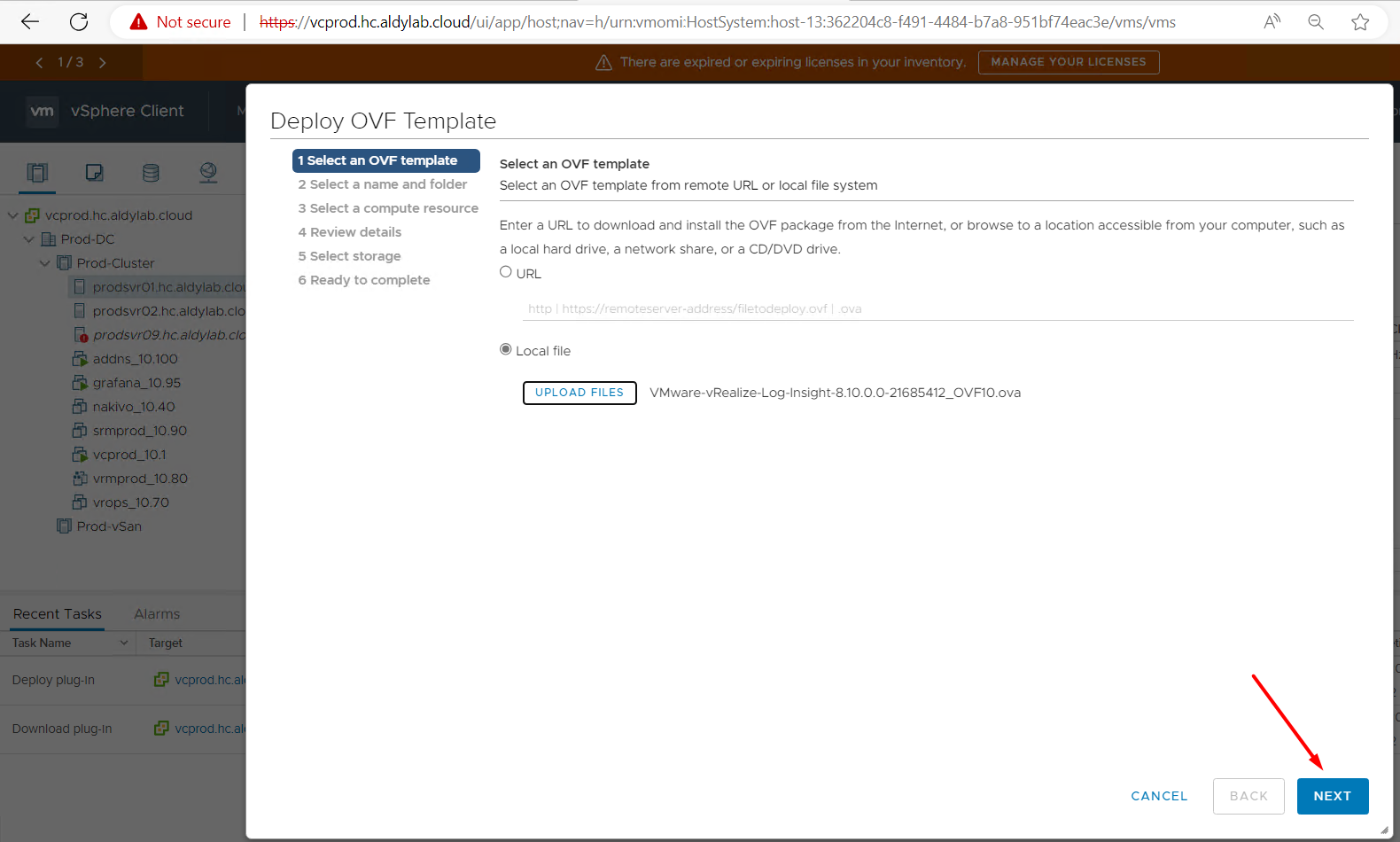
First of all, we need to Download Log Insight OVF package from VMware web, then login to vCenter with administrator previleges,
select cluster object, right-click, and choose deploy OVF template option.

Lets choose Local File then upload vRealize Log Insight ova like picture below. Click Next
In the next screen it will ask for a name for the VM and location.

Then you will have to provide destination compute resource for the VM. Select Cluster and hosts.

Please review configuration details and Next

Lets check license agreement, then next

Then you will be asked for deployment configurations for the VM and select the configuration size that suits for your environment.
I choose small because it suits with my resources, lets Next

Then it will ask for virtual disk format and the destination storage location.

In this step, we need to choose Destination Network and IP Allocation. I choose static, then click next

Then you will be asked to customize the template.
In the first section it will ask for root password & hostname for this new VM. Note that I have record dns for my vrealize log insight in my dns server.

Still in the customize template, in the second section we need to configure network setting, ntp & dns

Then you will be asked to review final stage to deploy this new VM.

Once the VM is deployed and powered on you can access it via IP or FQDN, then you will be asked to do an initial setup for Log Insight.

Now, we are on the WEB GUI vrealize Log Insight for the first time. Lets click Next to continue

In this session, we need to choose deployment type either to join existing Log Insight deployment or to start a new deployment.
Here I'll choose the new deployment as I don't have an existing setup.

Then you will have to setup admin credentials to log in to web interface of Log Insight.

Once the credentials set up it will ask for license key, When you are downloading Log Insight you will get an
evaluation key and if you doesn't have a valid product key you can use that to continue with the wizard or you can skip it for now.

In general configuration, either you can participate to VMware CEIP program and setup system email notifications or give it blank with uncheck. Lets Click Save and Continue

By default time configuration is set to VMware NTP servers and if you wish to use other settings you can configure it here. I choose ESX/ESXi host for Time configuration.

Then lets configure SMTP setting according to your organization.
Then you have to configure SSL Certificate settings. I skip it then just click Save and Continue

Great, Setup is complete. Lets click finish

Once all the above steps are configured correctly we are ready to configure vCenter integration, agent installation and syslog configurations.

Integrating with vSphere is a simple. Lets click Confidure vSphere integration and provide the necessary details according to your environment. Please check picture below:

Congrats, our vRealize Log Insight and Vcenter are synchronize with collecting status is green.

Now, lets check feature offered by vRealize Log Insight to analyze Log for our Infrastructure.

 Finished, Thank you!
Leave a Comment