

Project Detail

Hi, in this post I want to highlight and review vROPS from my perspective as a monitoring resources tools for my Homelab datacenter.
Please advise or comment if there is any invalid information from my blog. Thank you.
VMware vRealize Operations (vROps) is an advanced IT operations management solution designed to provide comprehensive visibility and intelligent insights into your virtualized data center and cloud environments.
It is part of the VMware vRealize Suite, which includes a set of management tools for managing hybrid and multi-cloud environments. (source: chatgpt)
Deploy OVF Template:
1. Download the vRealize Operations Manager Appliance from VMware.
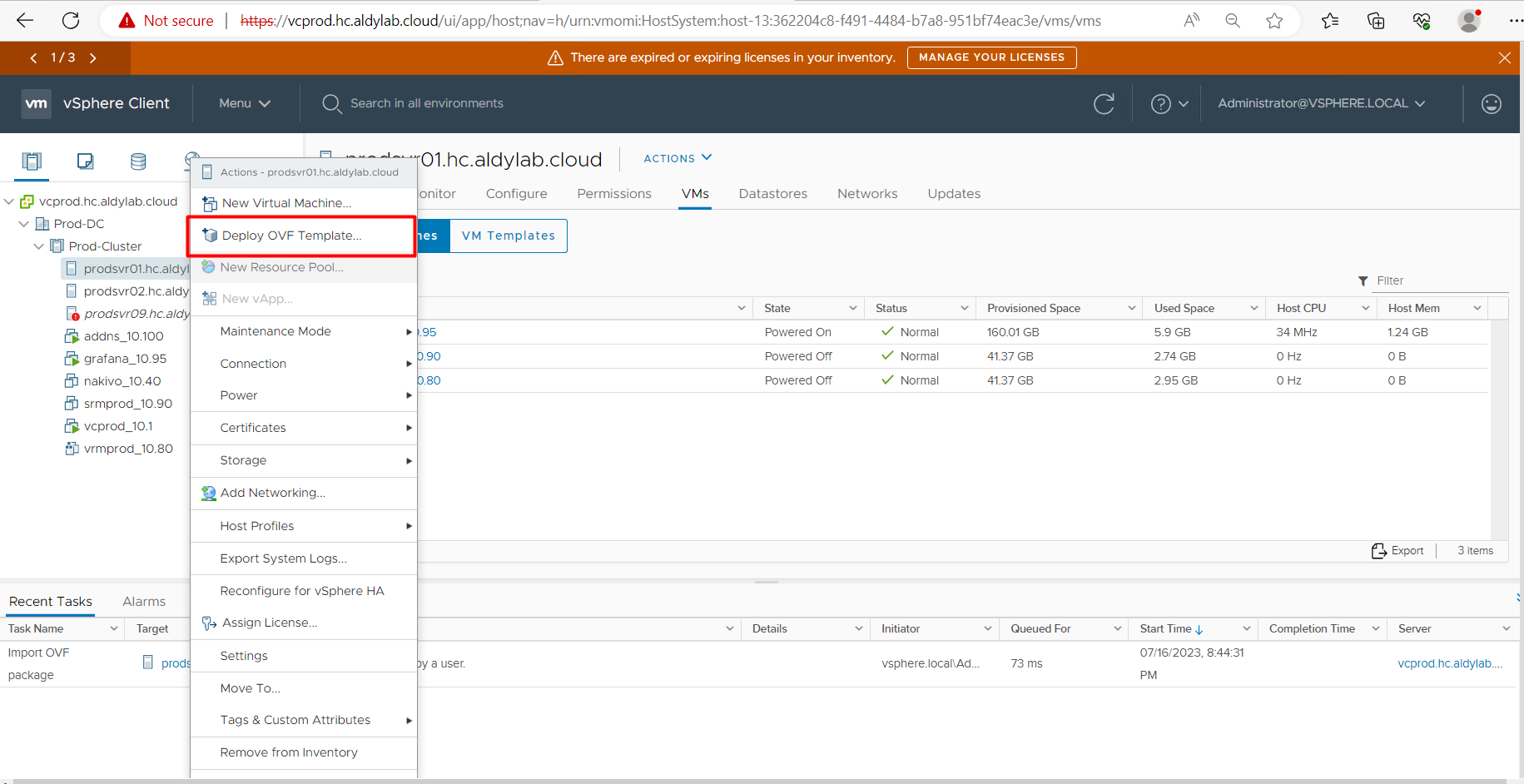
2. Log in vCenter Server using administrative previleges & right-click on your cluster or host then select Deploy OVF Template.
3. Click Upload Files to locate and select the vRealize Operations Manager Appliance OVA file

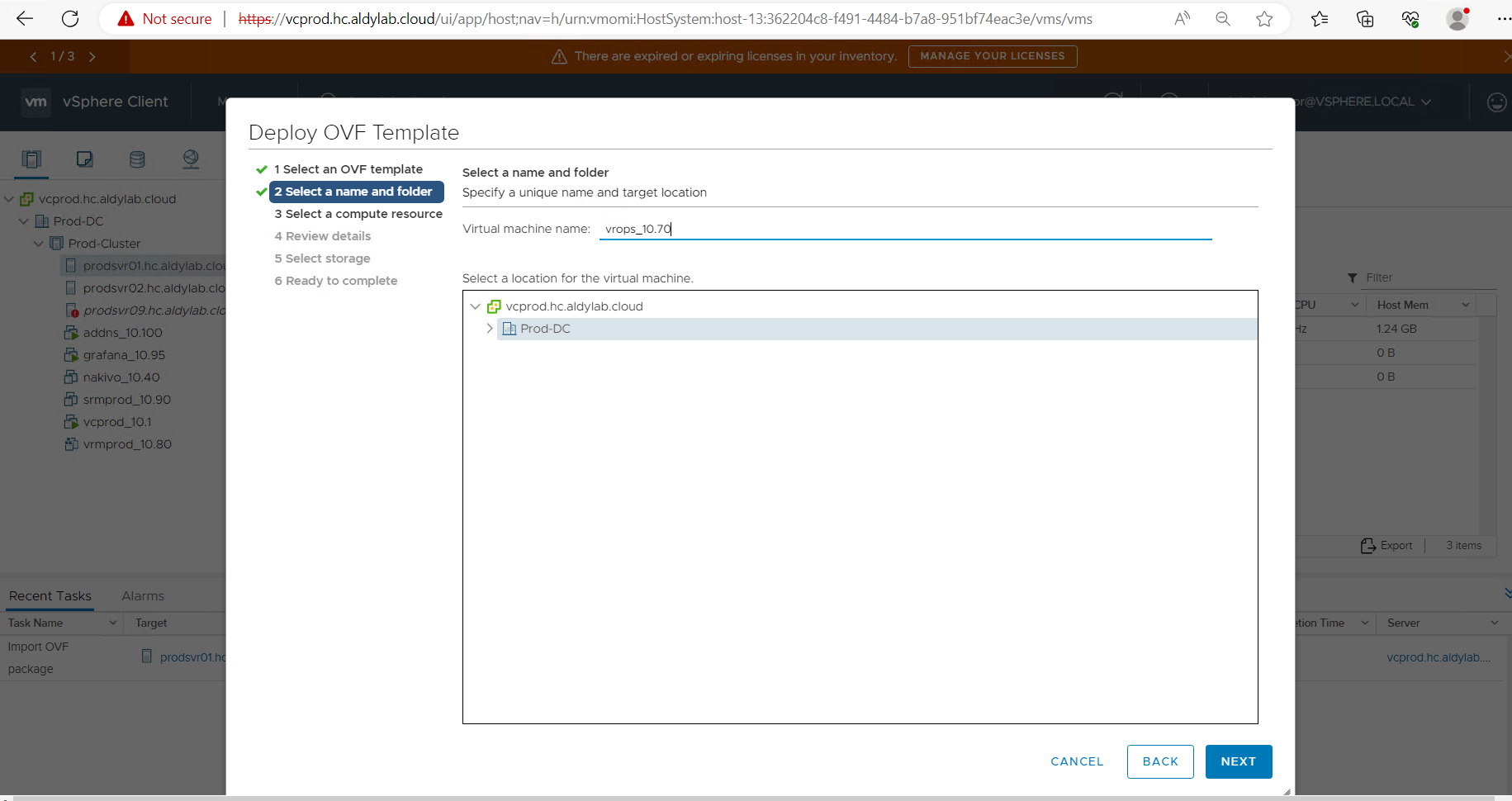
4. Enter a name for the virtual machine and select a folder. Click Next.
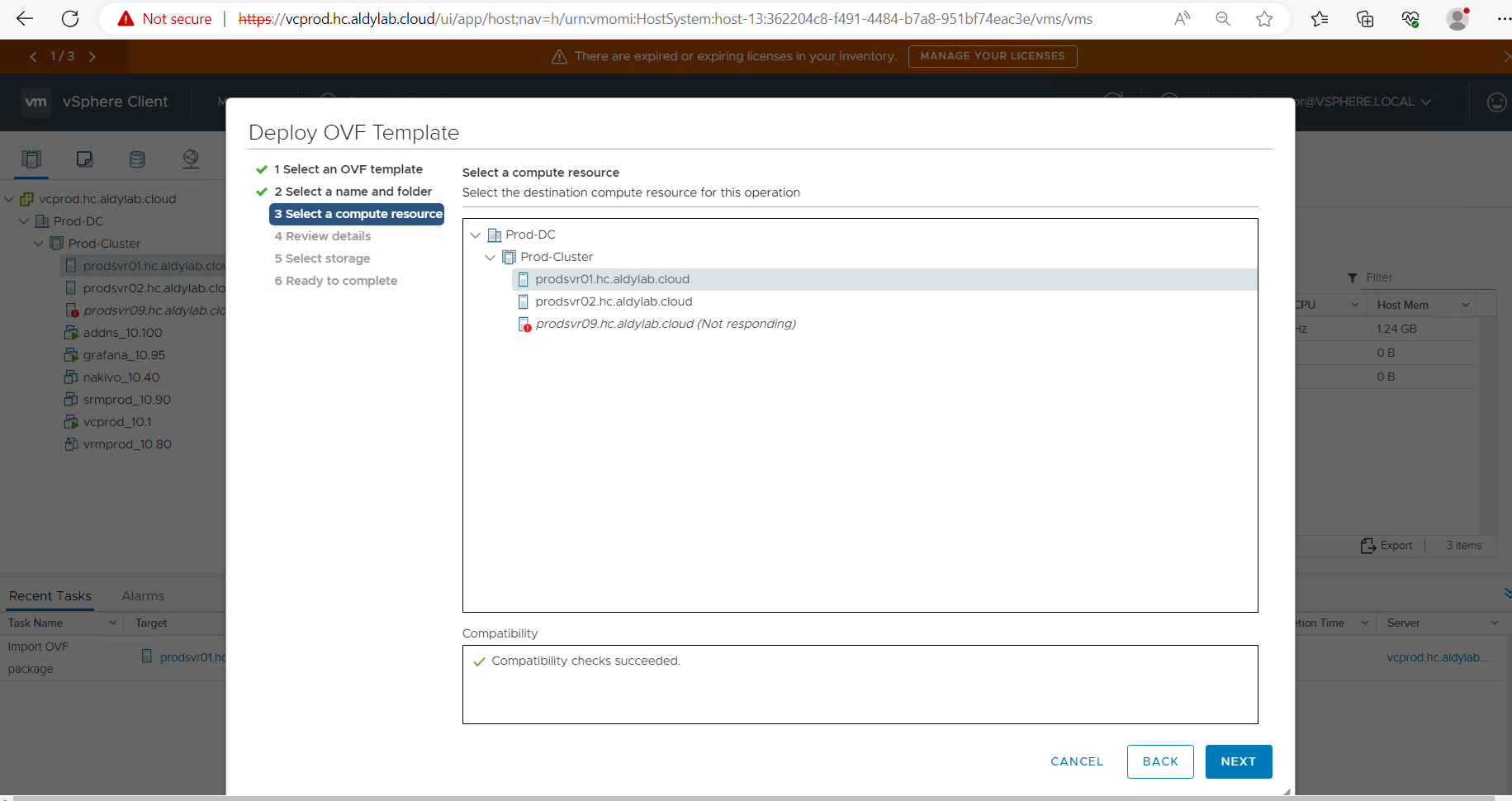
5. Select a Compute Resource to deploy the virtual machine and click Next.
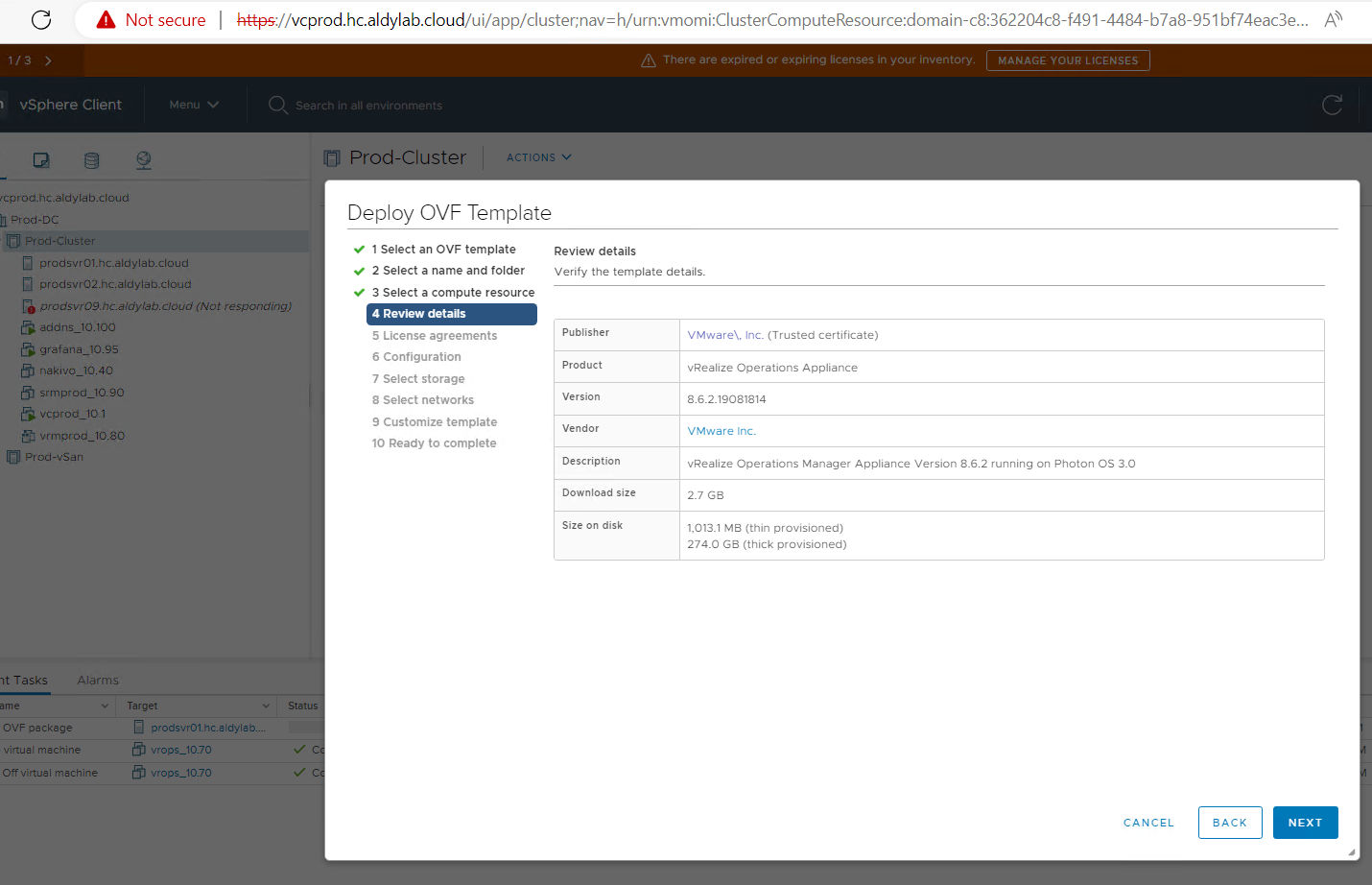
6. Review the details of the OVF template, and click Next.
7. Accept the license agreement and click Next.
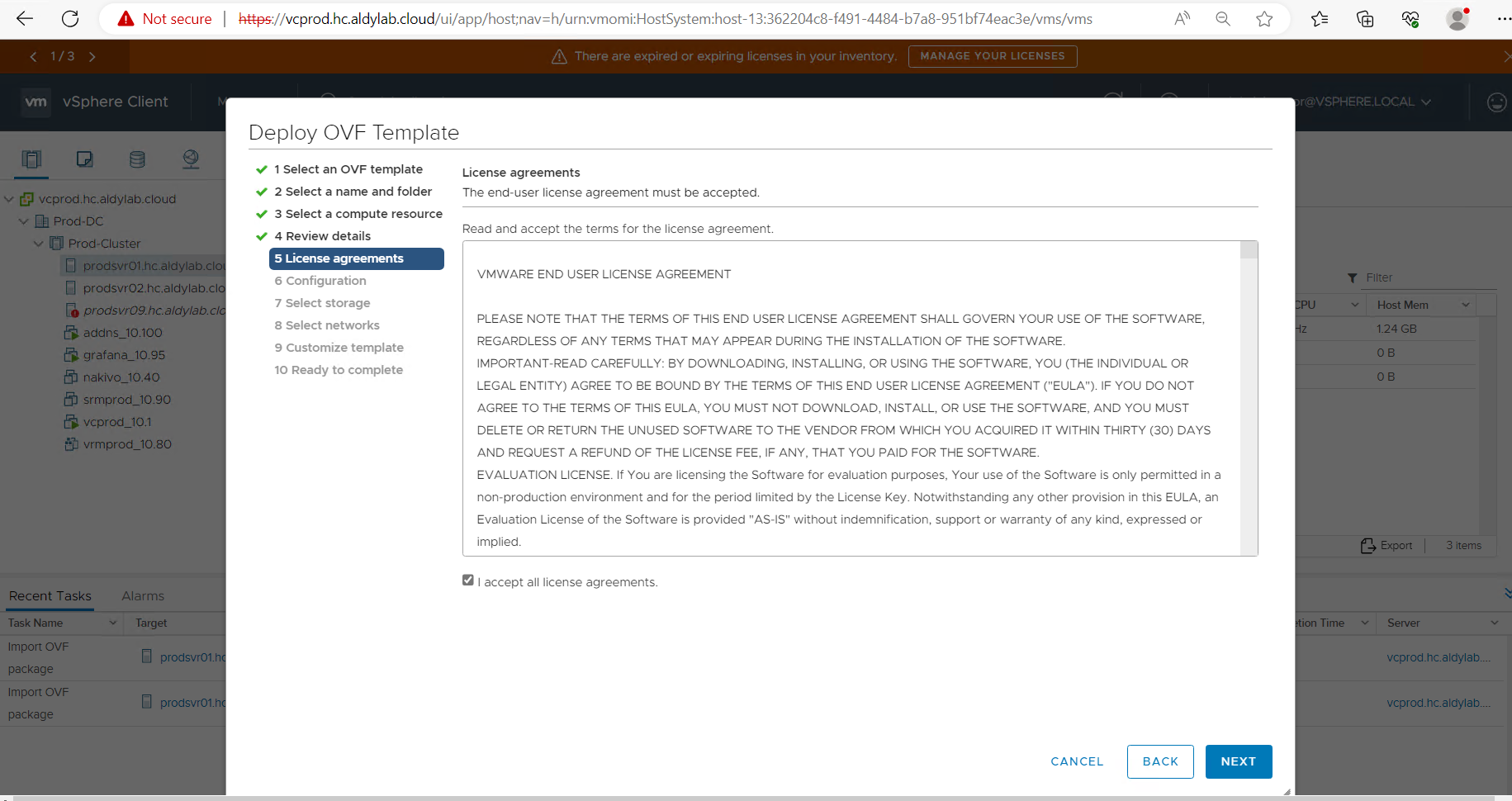
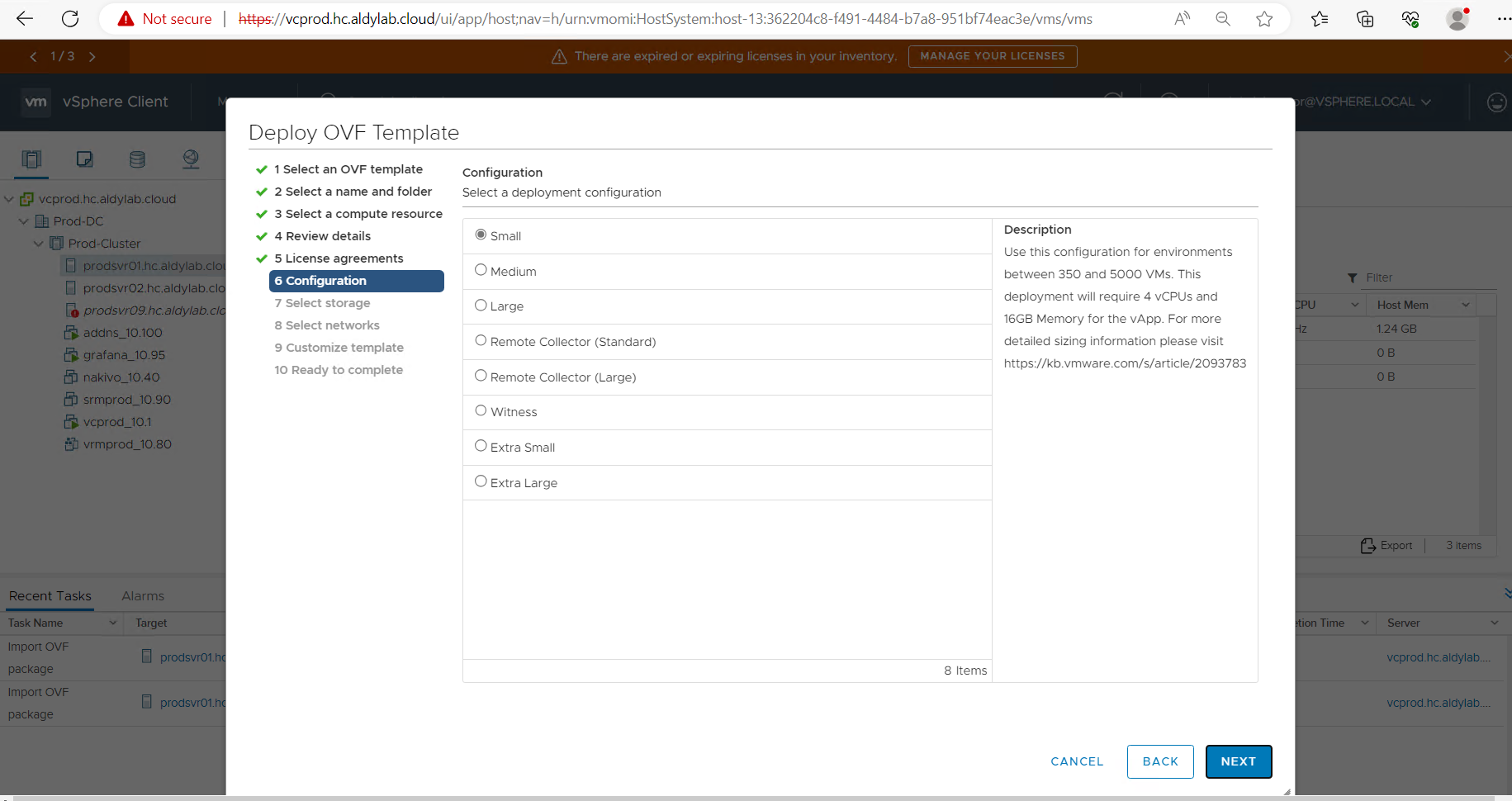
8. Choose size for your deployment configuration environment, for me to efficience resources I go for small, and click Next.
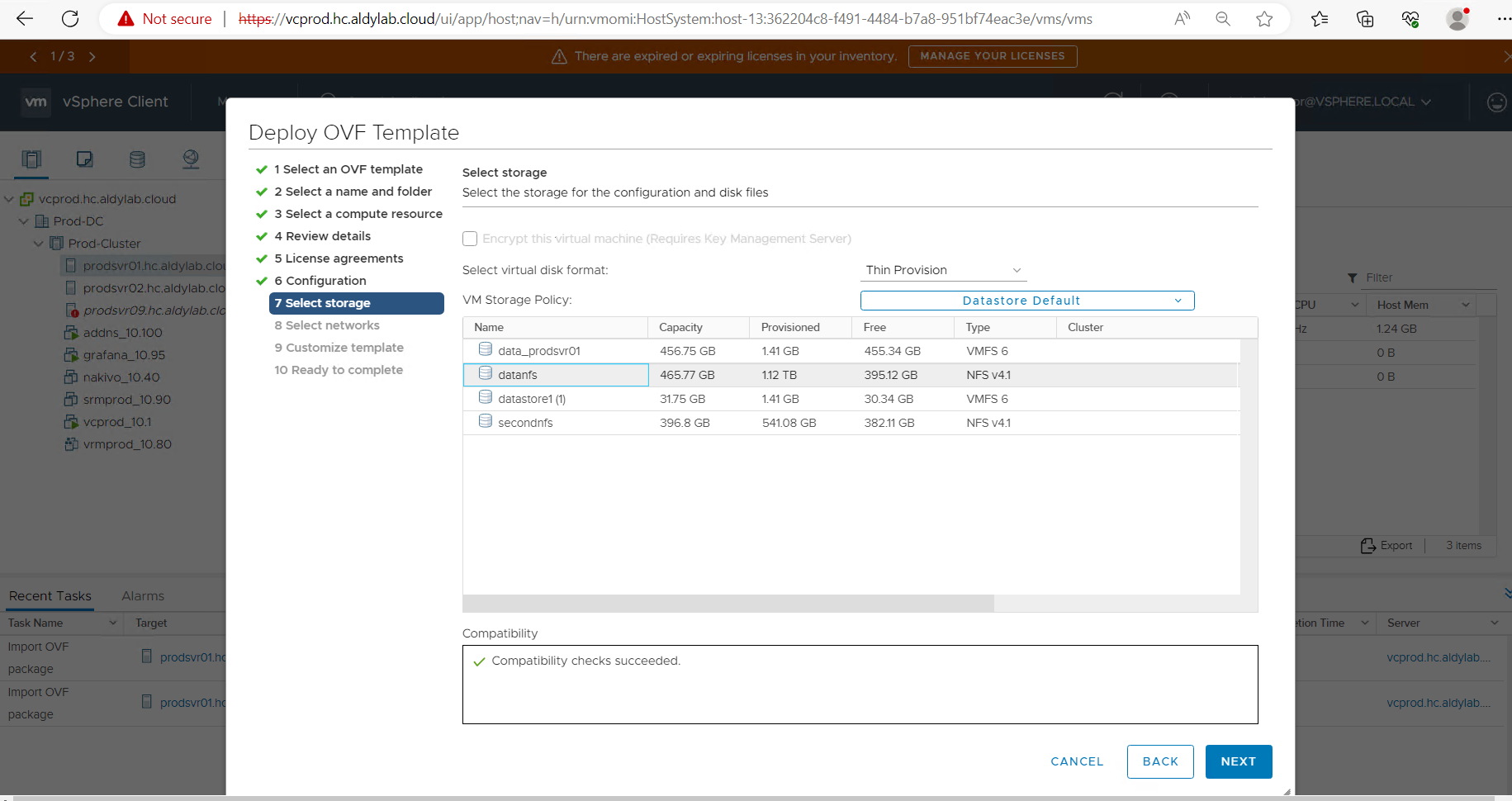
9. Select the virtual disk format and a datastore you want to use for the virtual machine and then click Next.
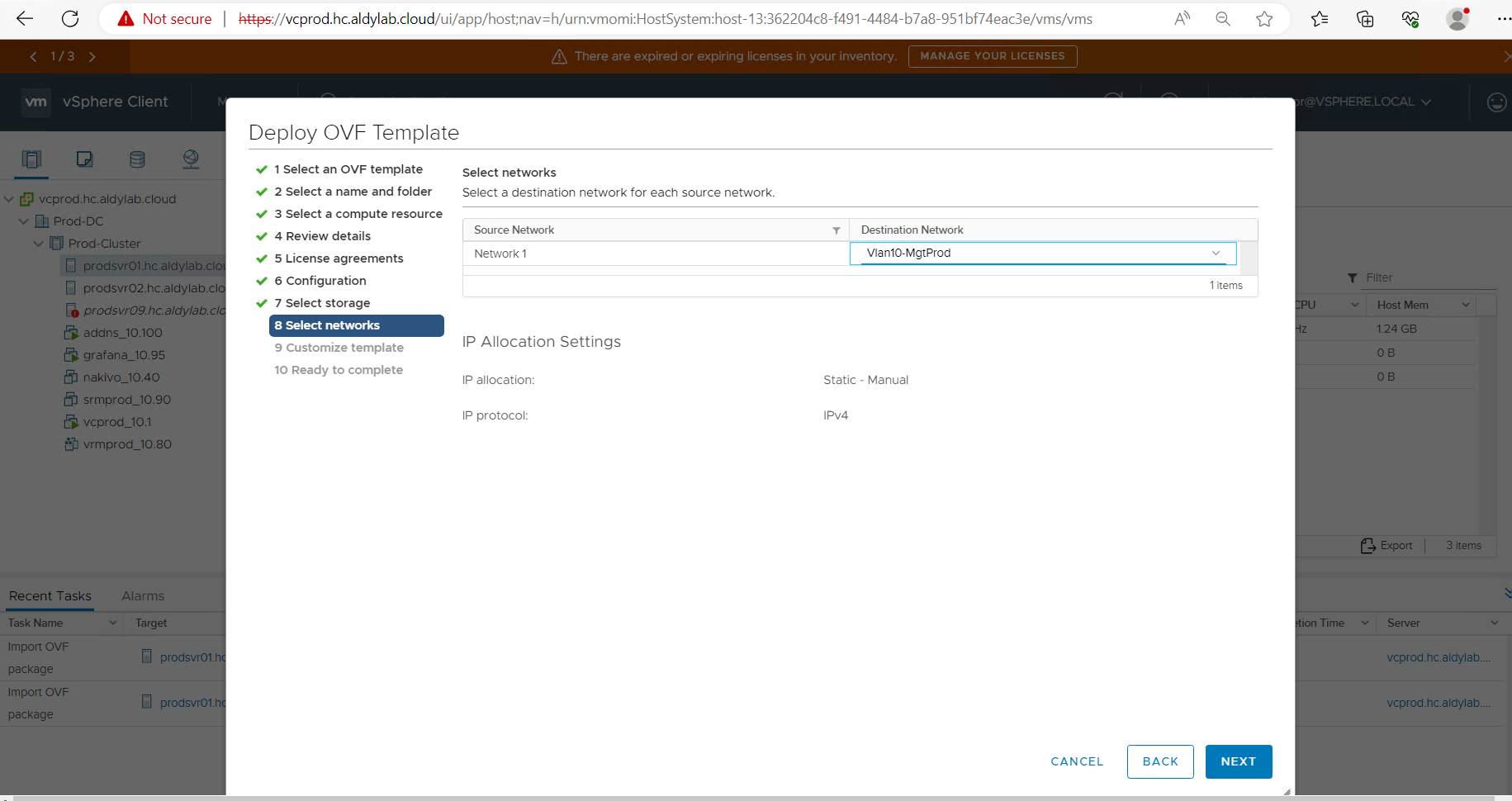
10. Select the network configuration for the virtual machine and click Next.
11. Configure the IP address and network settings and click Next.
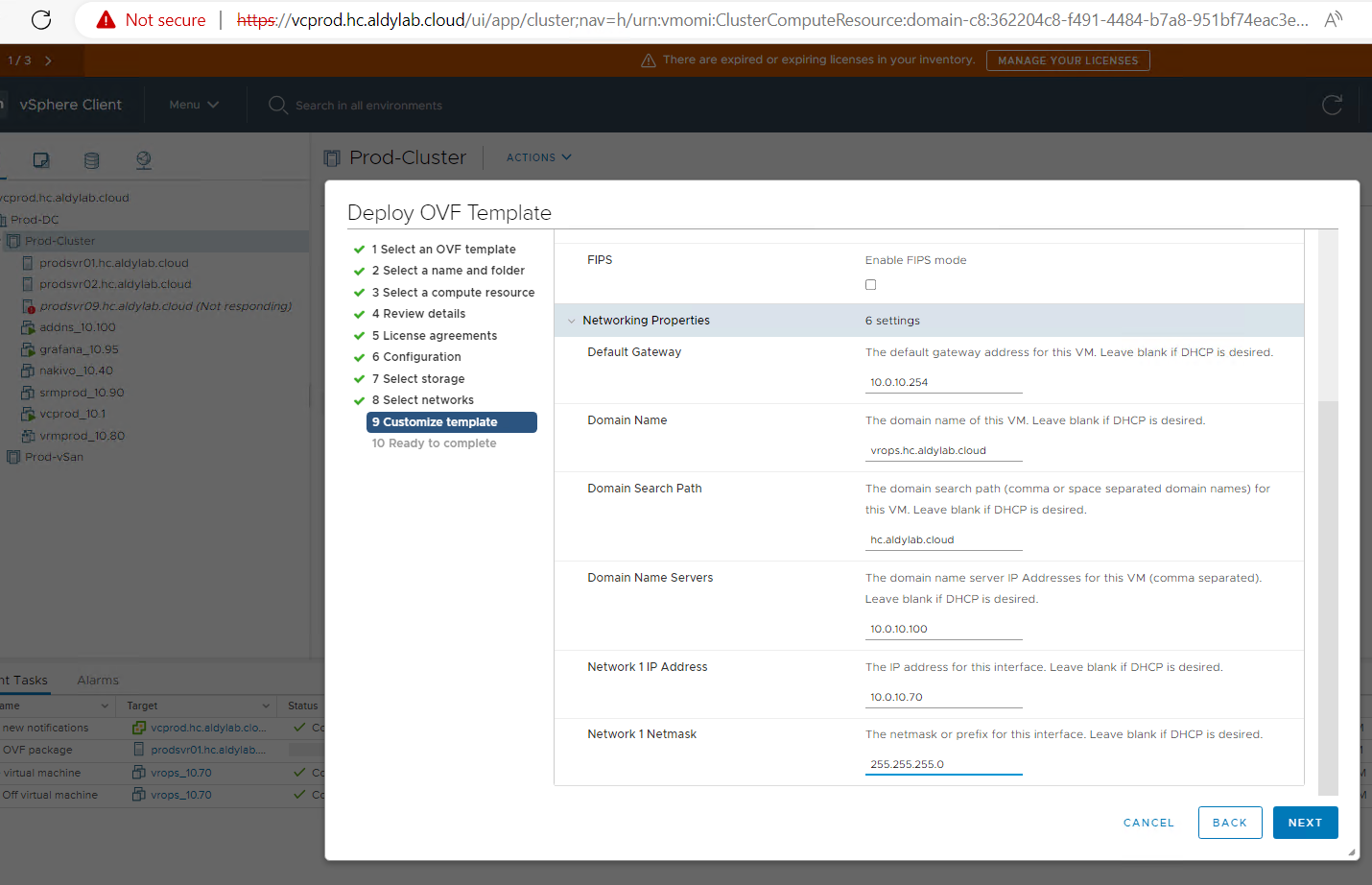
12. Review the configuration details, click Finish to start the deployment process.

13. Once it is progress, Lets have a coffee and cook indomie noodles, Seleraku!
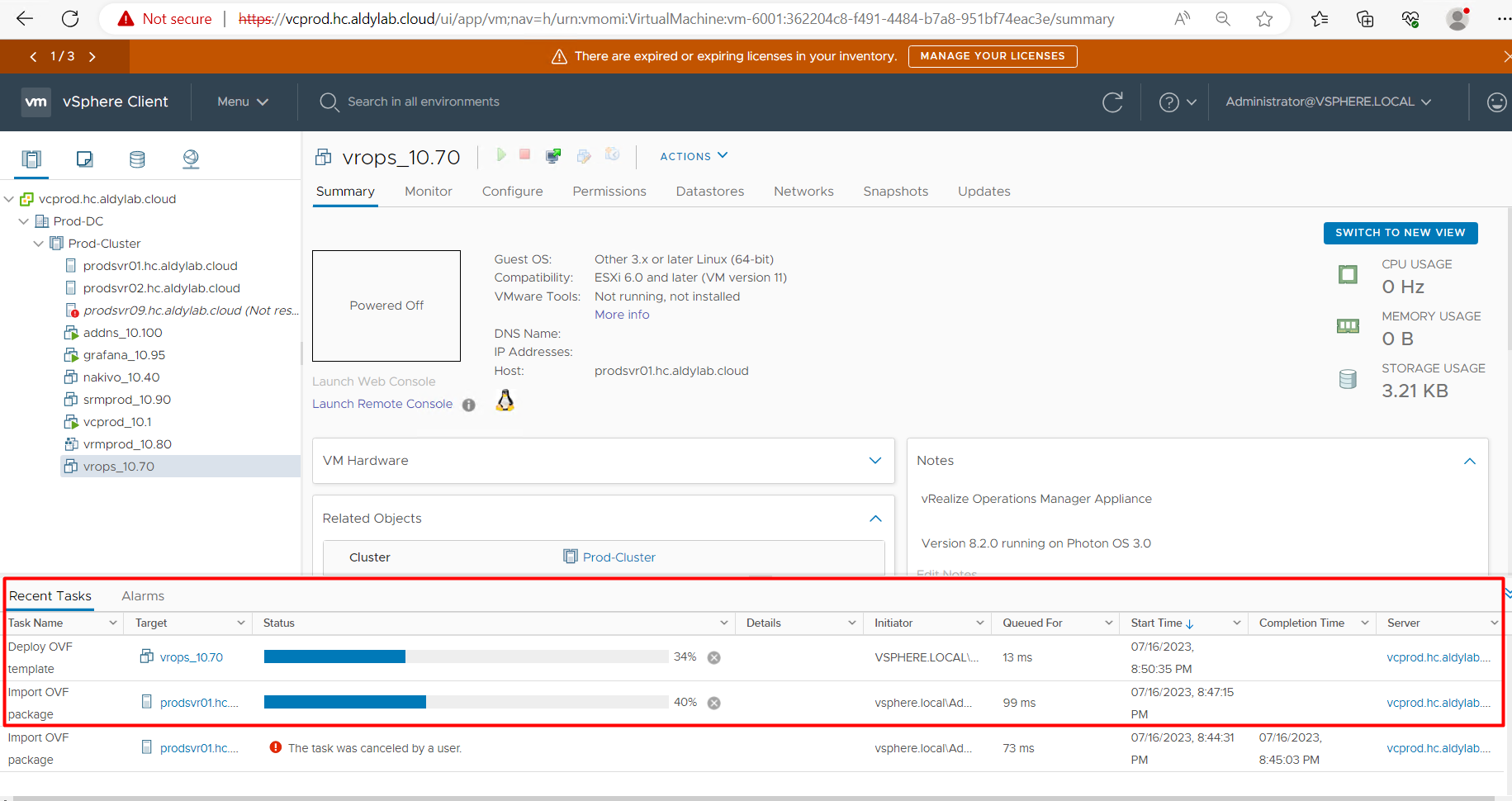
14. Proccess power on is about 30-40 minutes until your dashboard vRops stable
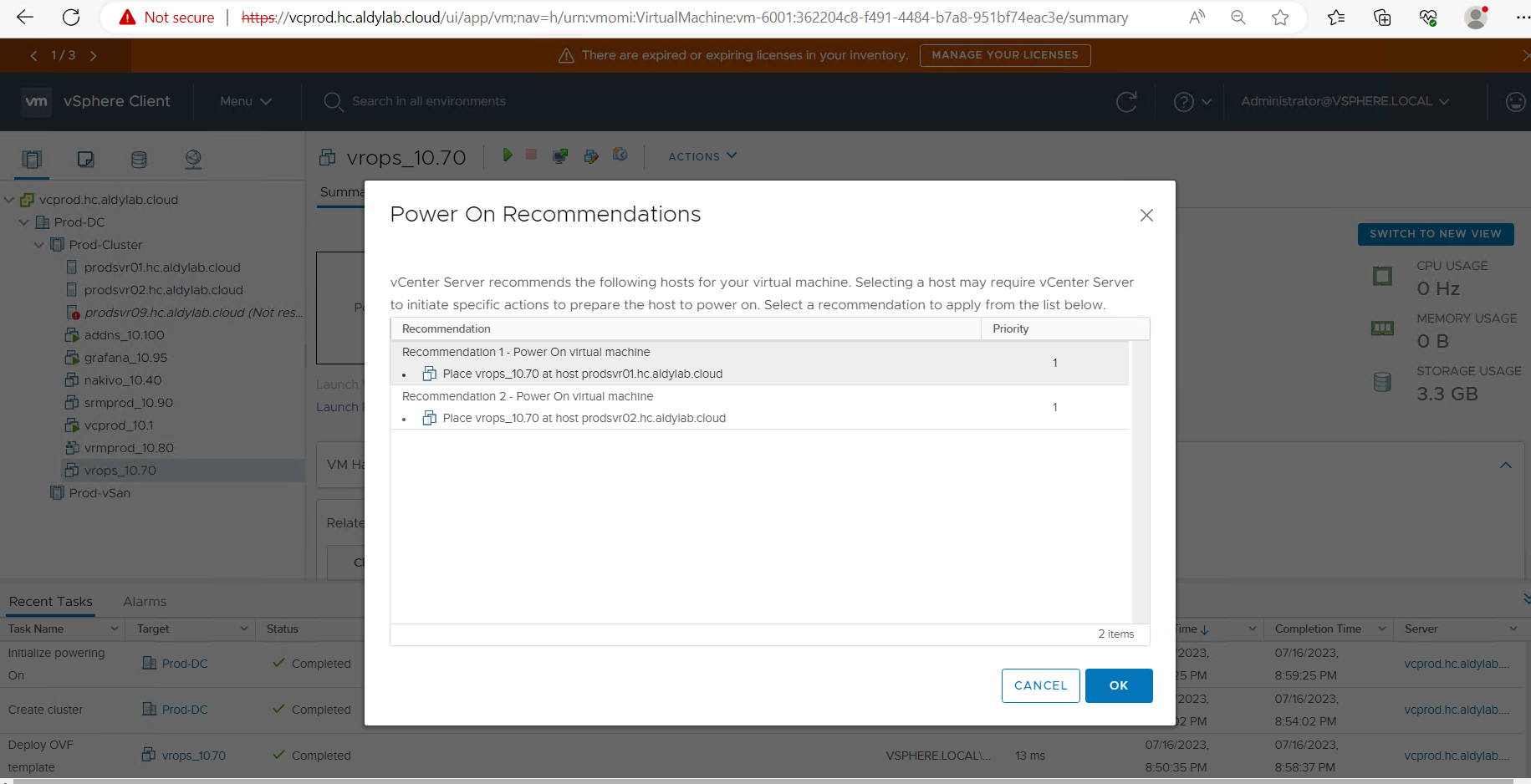
15. Once the provisioning process is complete, power on the virtual machine. Then open a web browser and enter the IP address of the vRealize Operations Manager Appliance,
it automatically redirects you to the setup wizard page, and select New Installation.
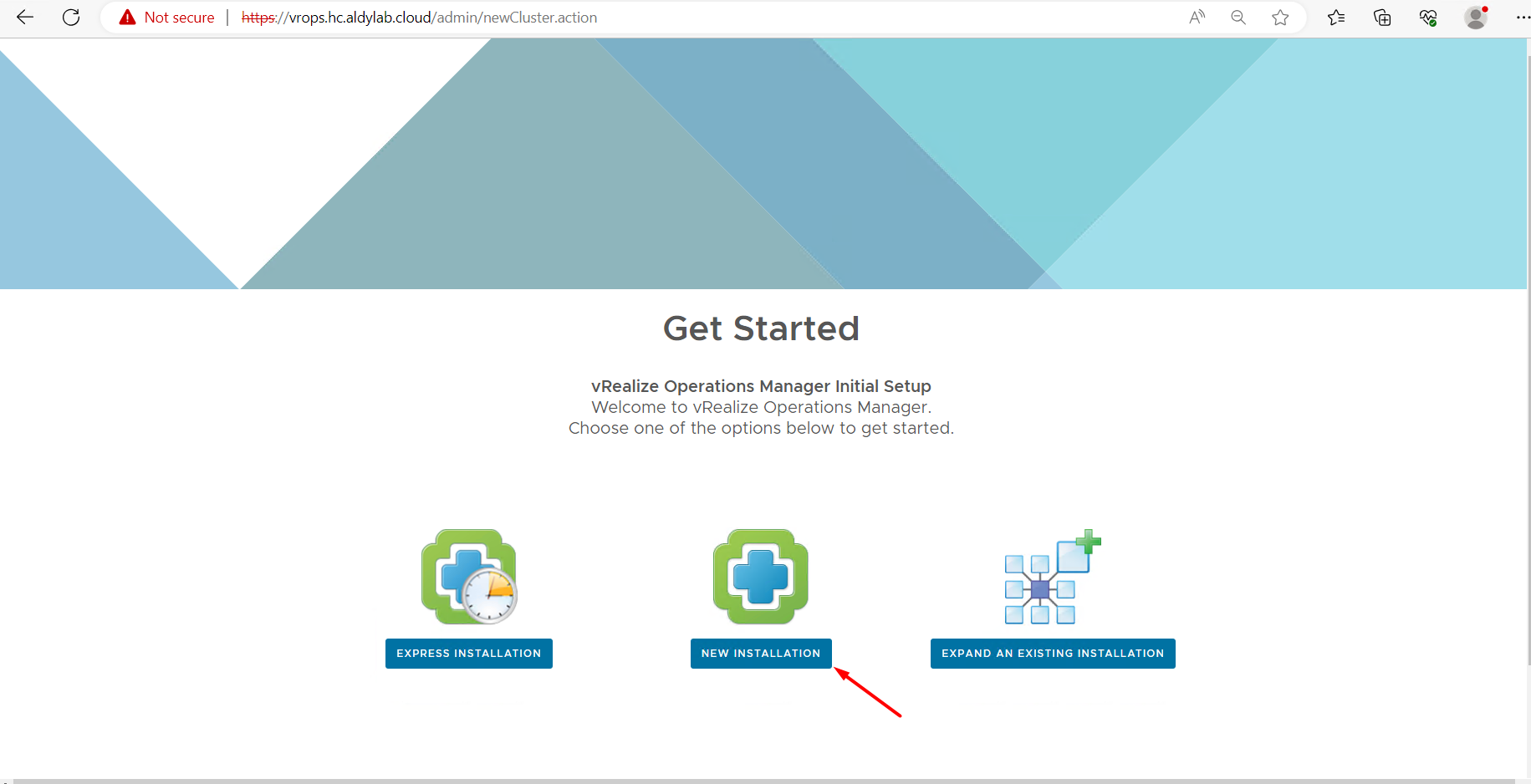
16. On the Getting Started page, click Next.
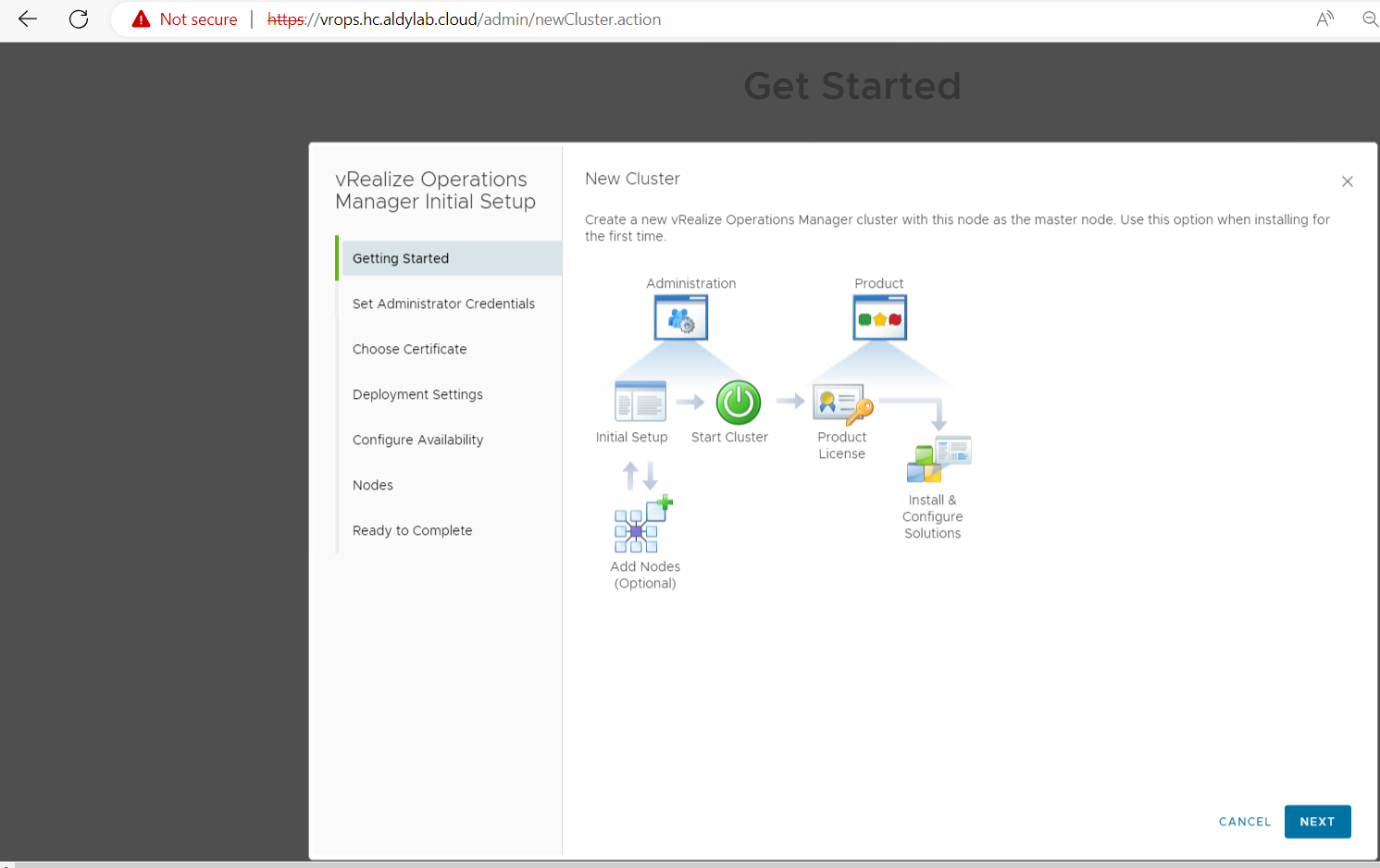
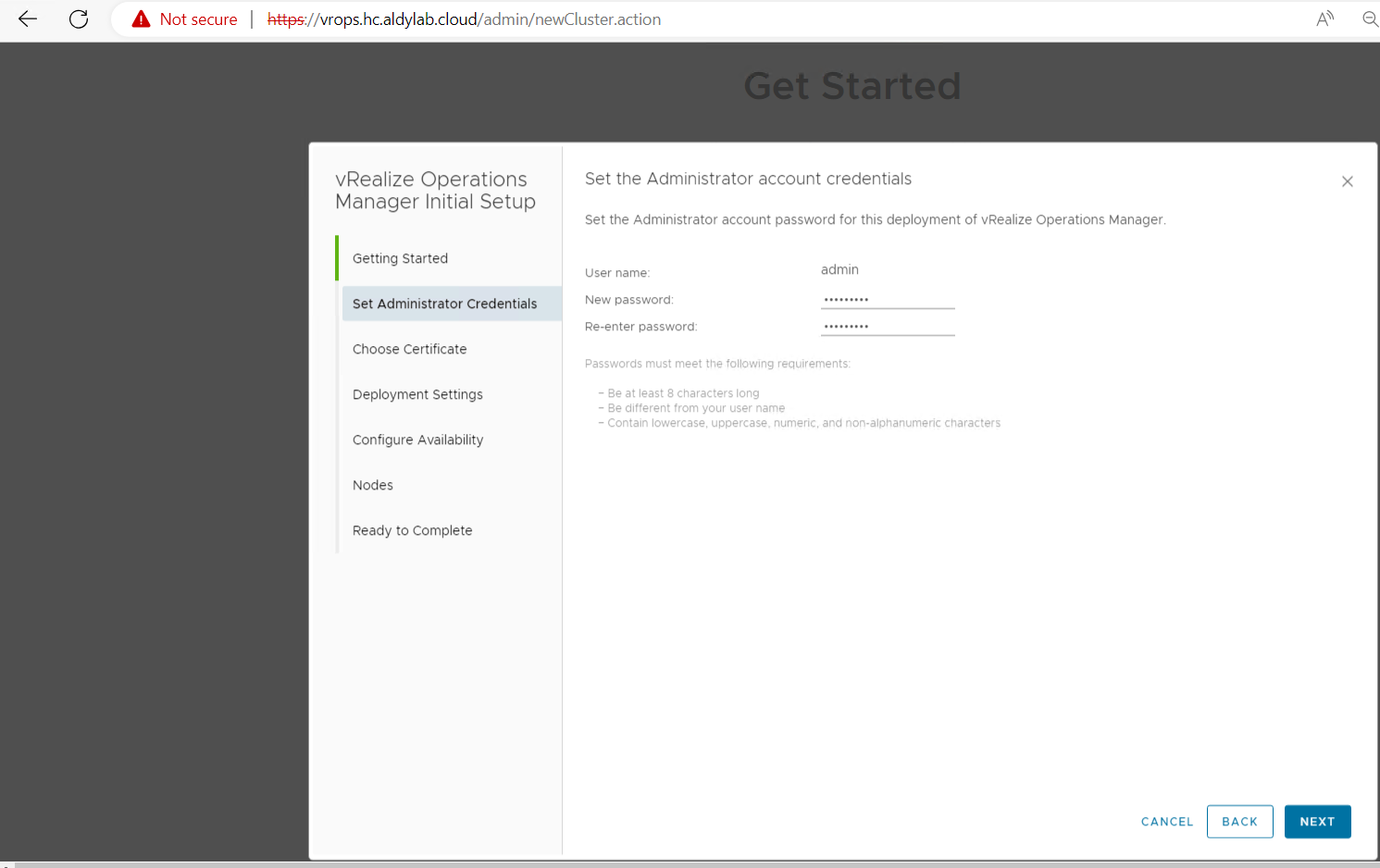
17. Enter a password for the “admin” user. Username is not changeable.
18. Select a certificate or use the default certificate and click Next.

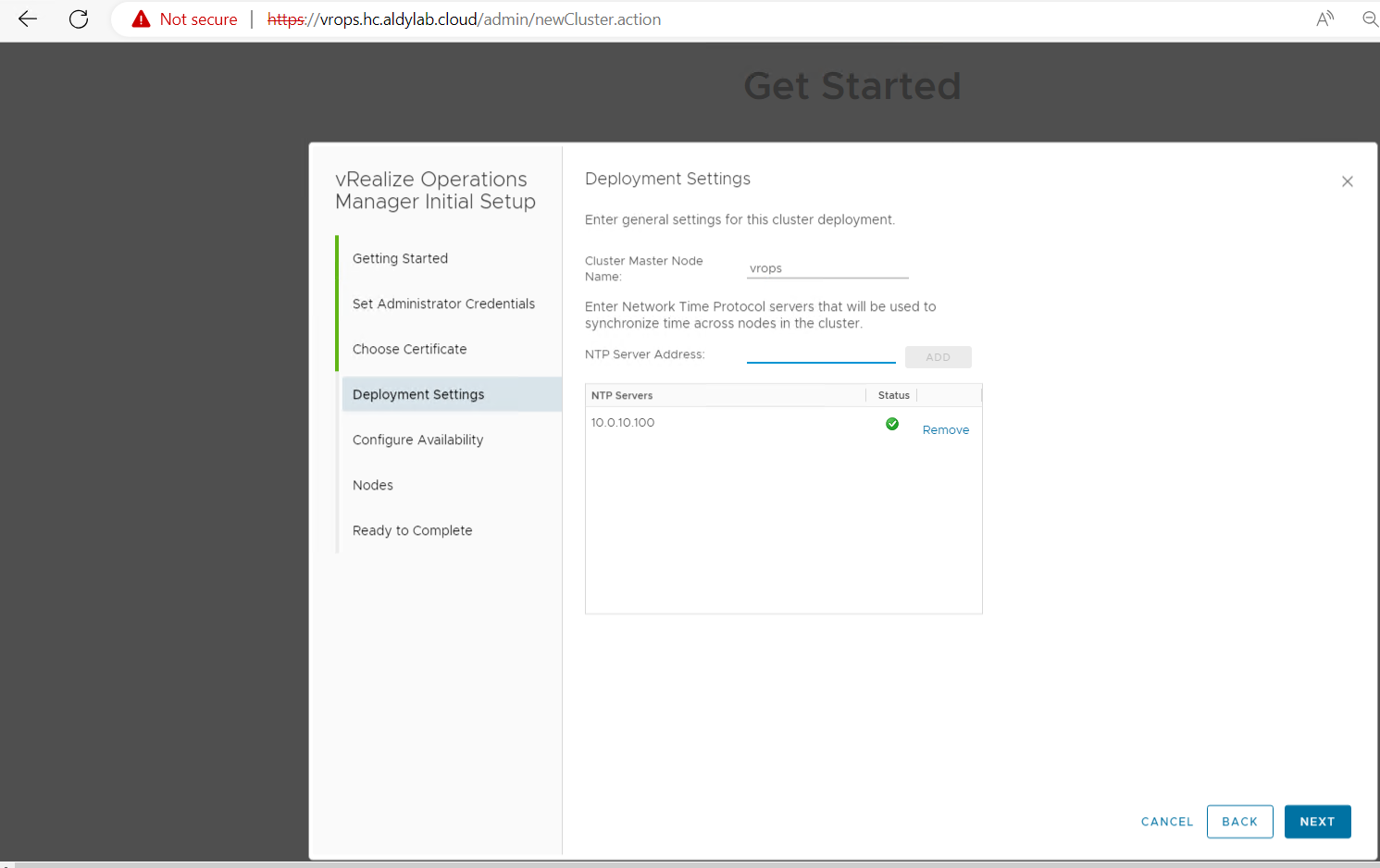
19. Enter a name for the primary node and enter the URL or IP address of the NTP server and click Next.
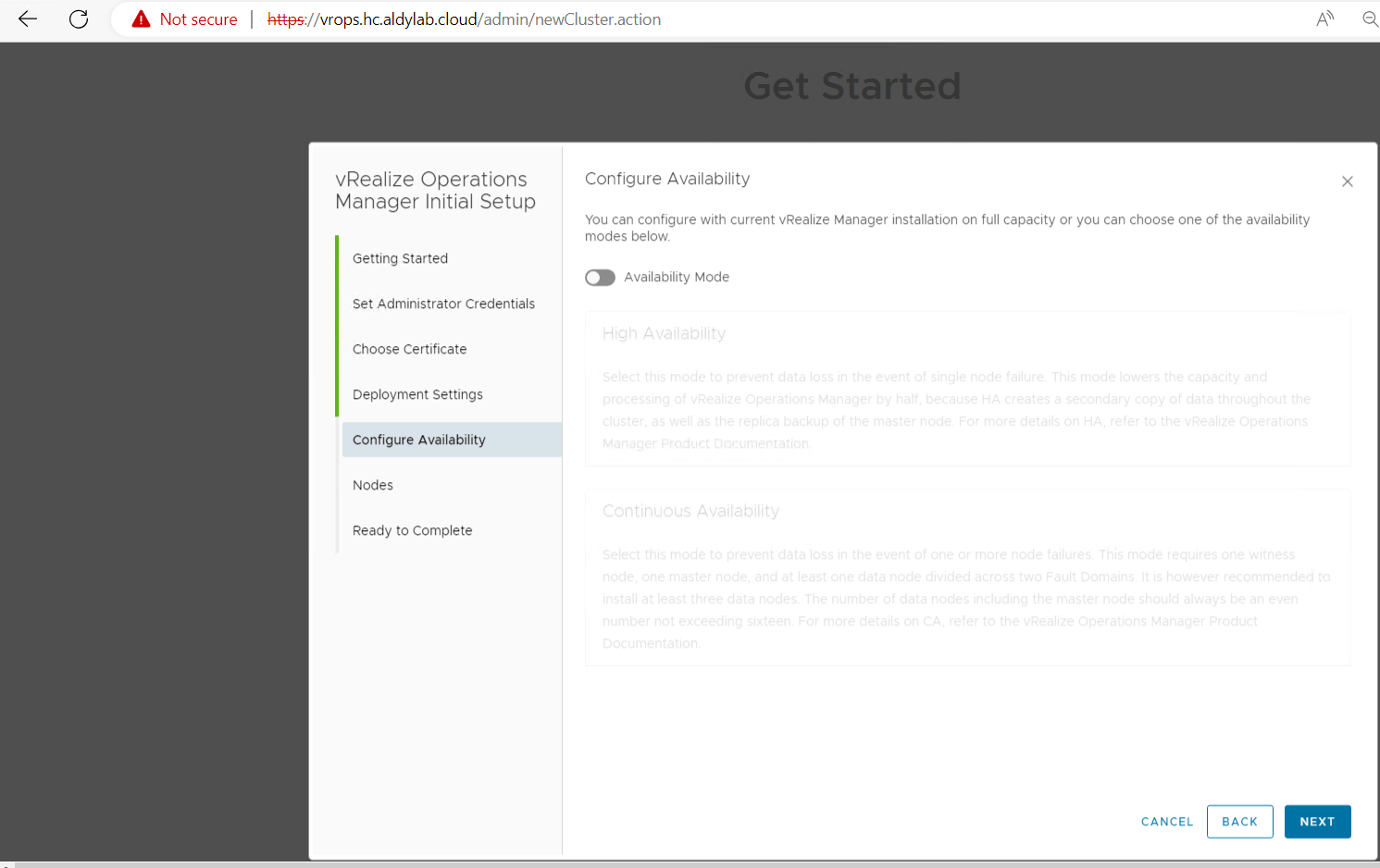
20. Enable availability mode if you want to deploy vRops with availability to prevent data loss. I installed a standalone node so I disable this function for now.
21. Now you can add more nodes to the cluster, but this is an optional step and I skip it.
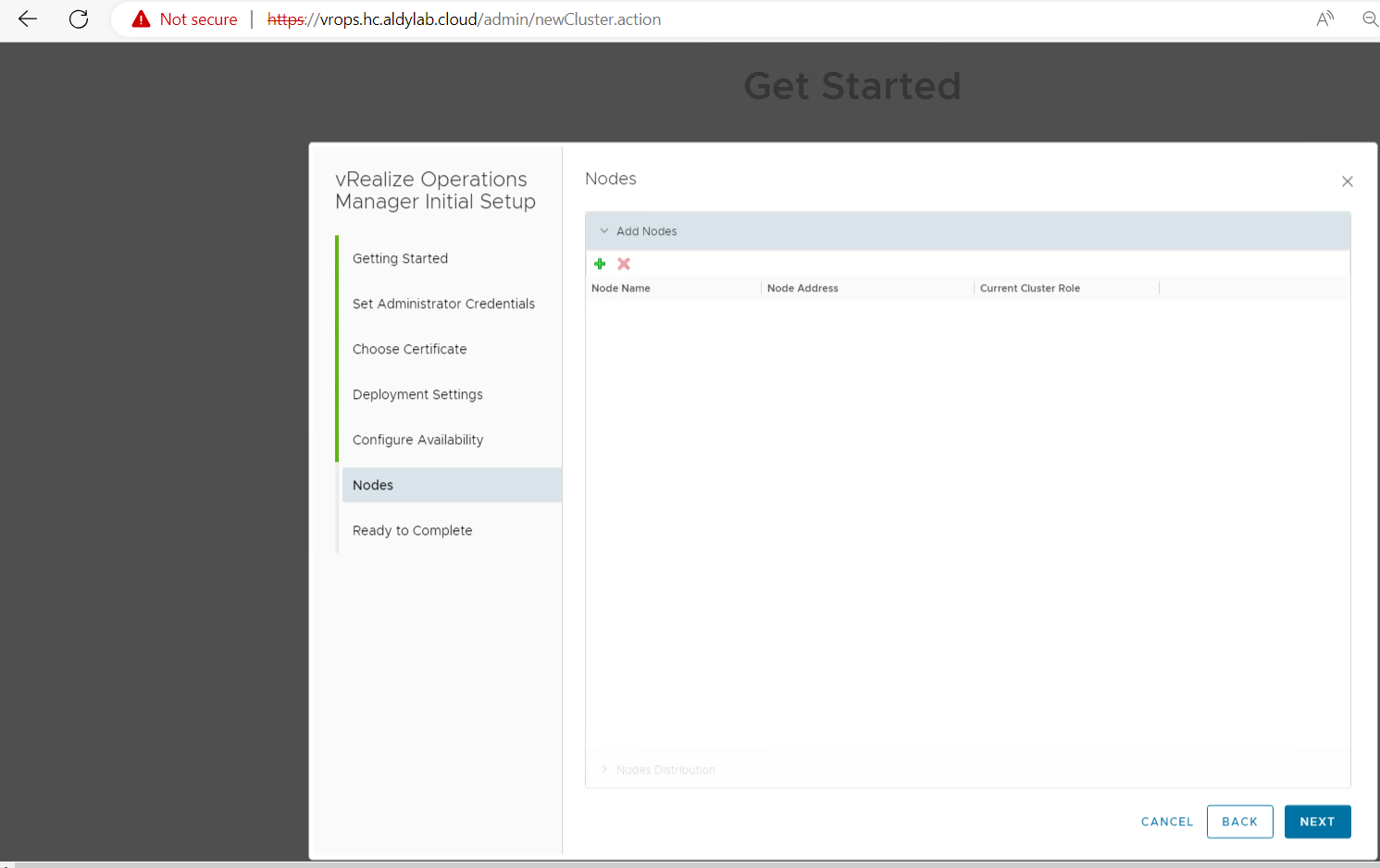
22. Ready to Complete page indicates after the initial setup we should start the cluster and perform the license and solution configuration, So click Finish to apply the initial configuration.

23. You will be redirected to the vRealize Operations Administrations page, click Start vRealize Operations Manager to start the single-node cluster.
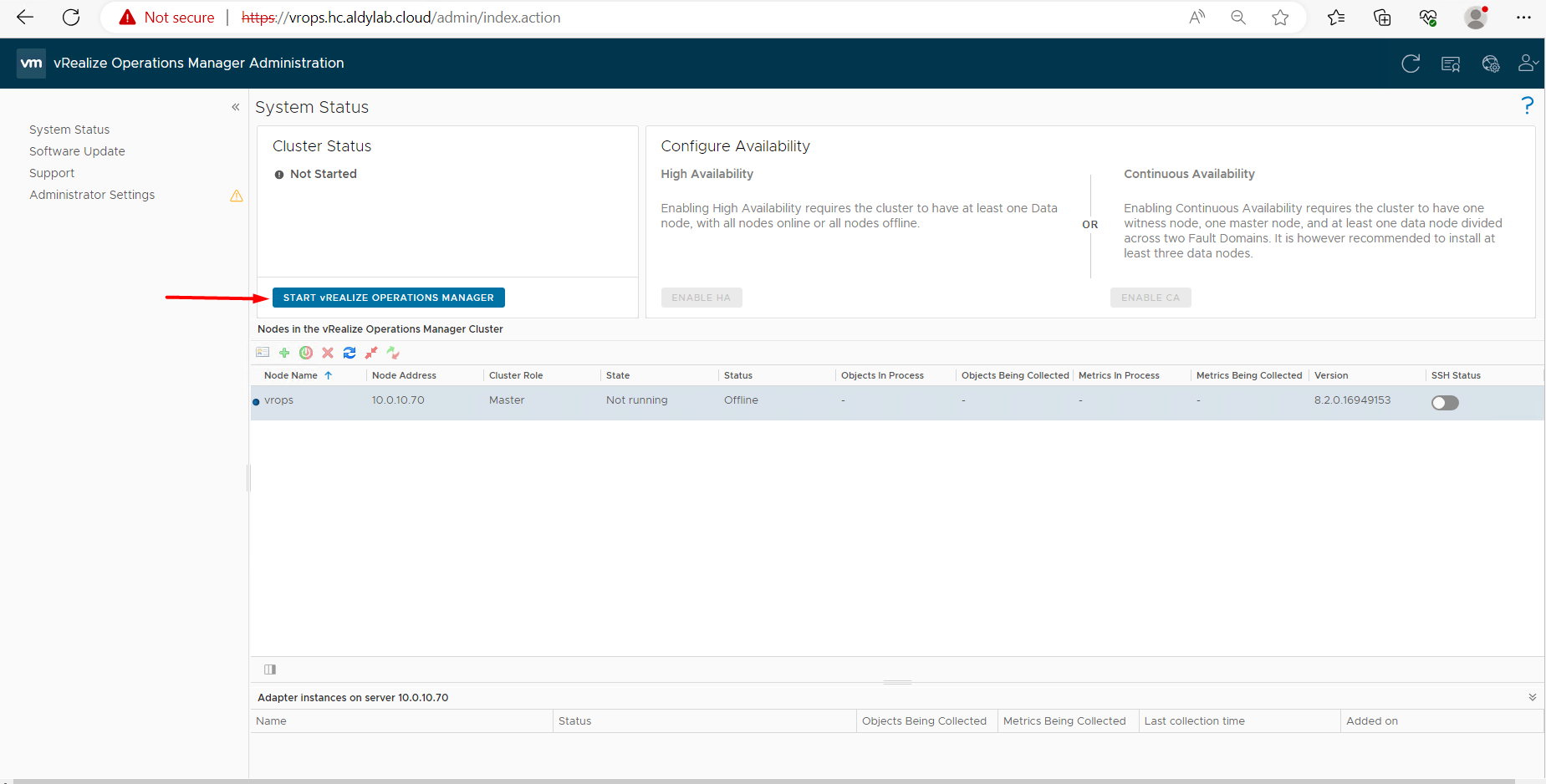
24. The cluster might take from 10 to 30 minutes to start
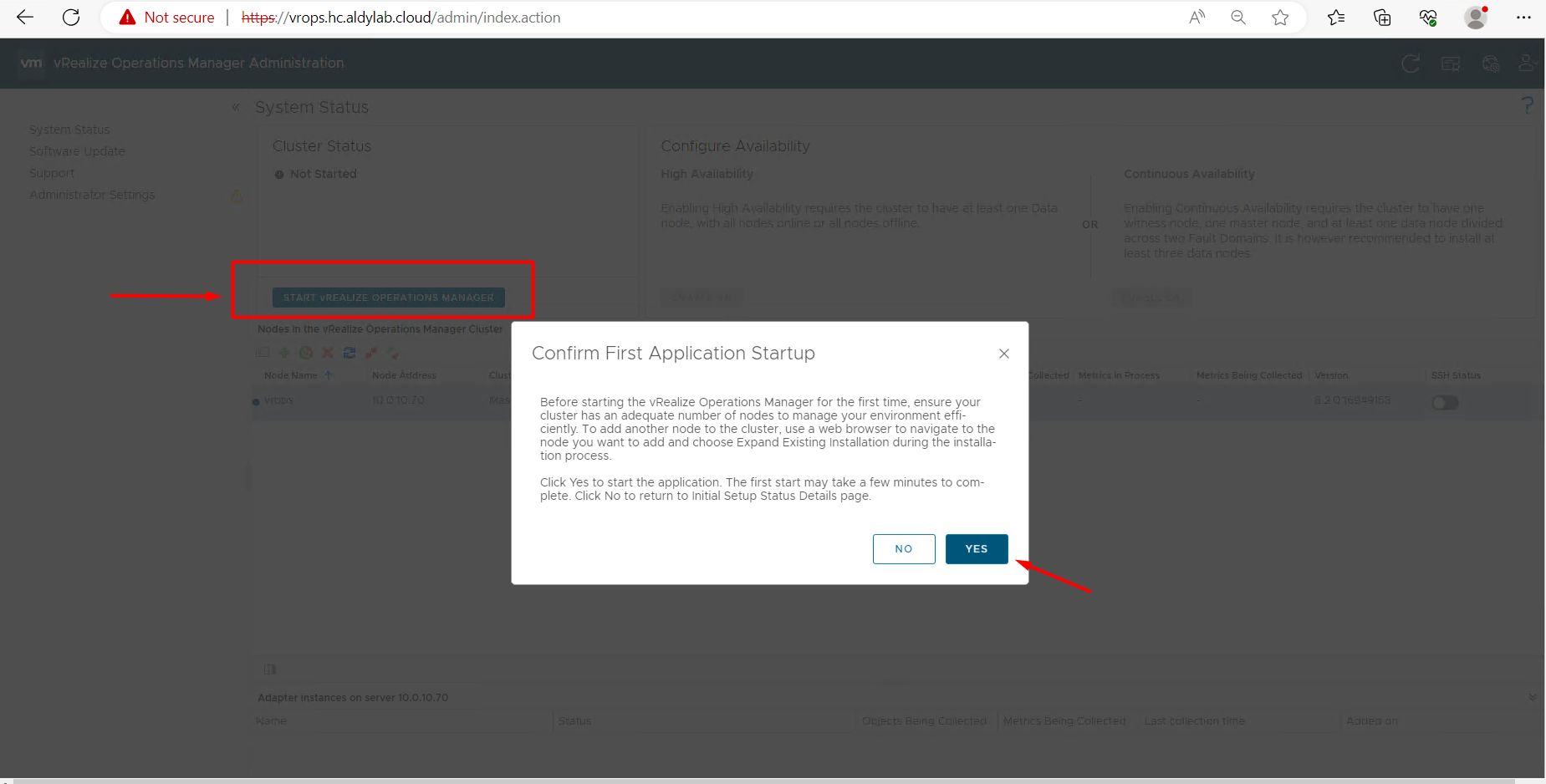
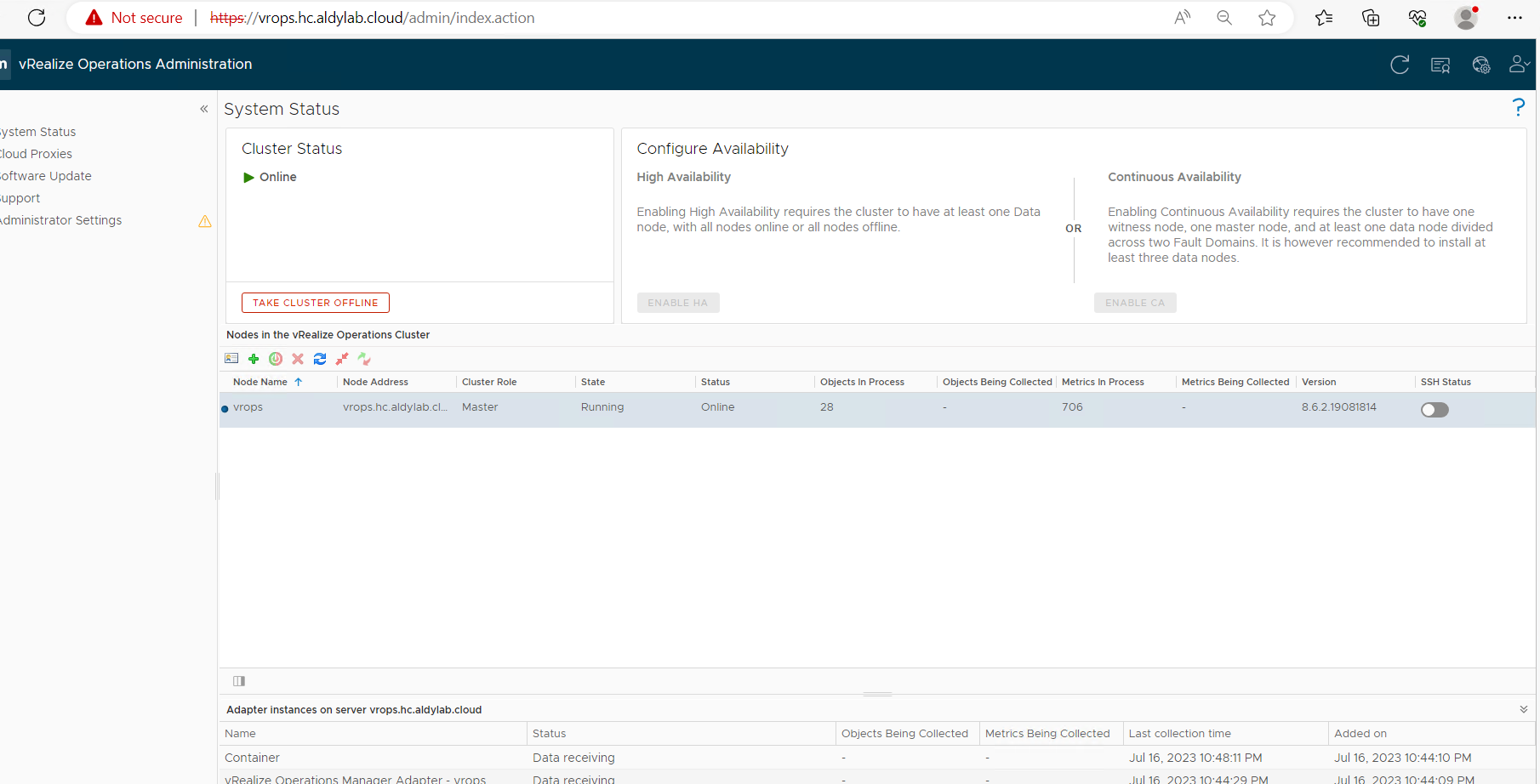
25. Once the configuration process is complete, You will be redirected to the vRealize Operations Manager Web UI and log in using the admin user and password you created during the configuration process.

26. The Welcome page appears and indicates that there are two more steps to configure (License and Solution). The Policy is optional, click Next to proceed.

27. Accept the End User License Agreement and click Next.

28. Enter your license key or select Product Evaluation to use the trial license and click Next.

29. Either join the customer experience improvement program or skip it and select Next.

30. Click Finish to apply license configuration.
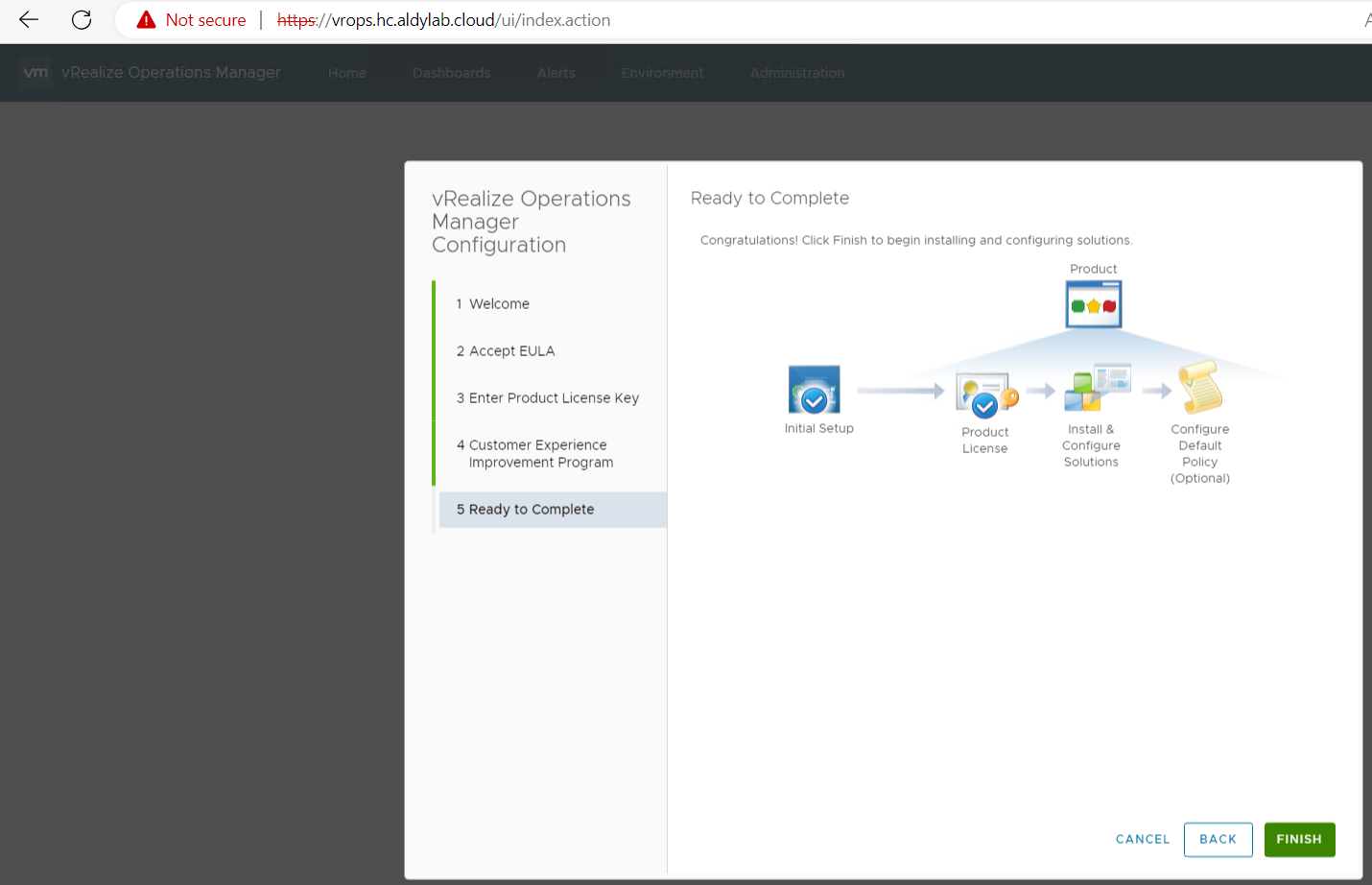
You have successfully configured the vRealize Operations. You can now start monitoring and managing your virtual environment. Now I want to add my vCenter to vRops.
31. Click on Add Cloud Account on the above page or from the left menu, click Data Sources, Integration, and then Accounts then click Add Accounts.
Select the solution, which in this case is vCenter.

32. Enter a name for vCenter and enter the FQDN of the vCenter server you want to monitor.
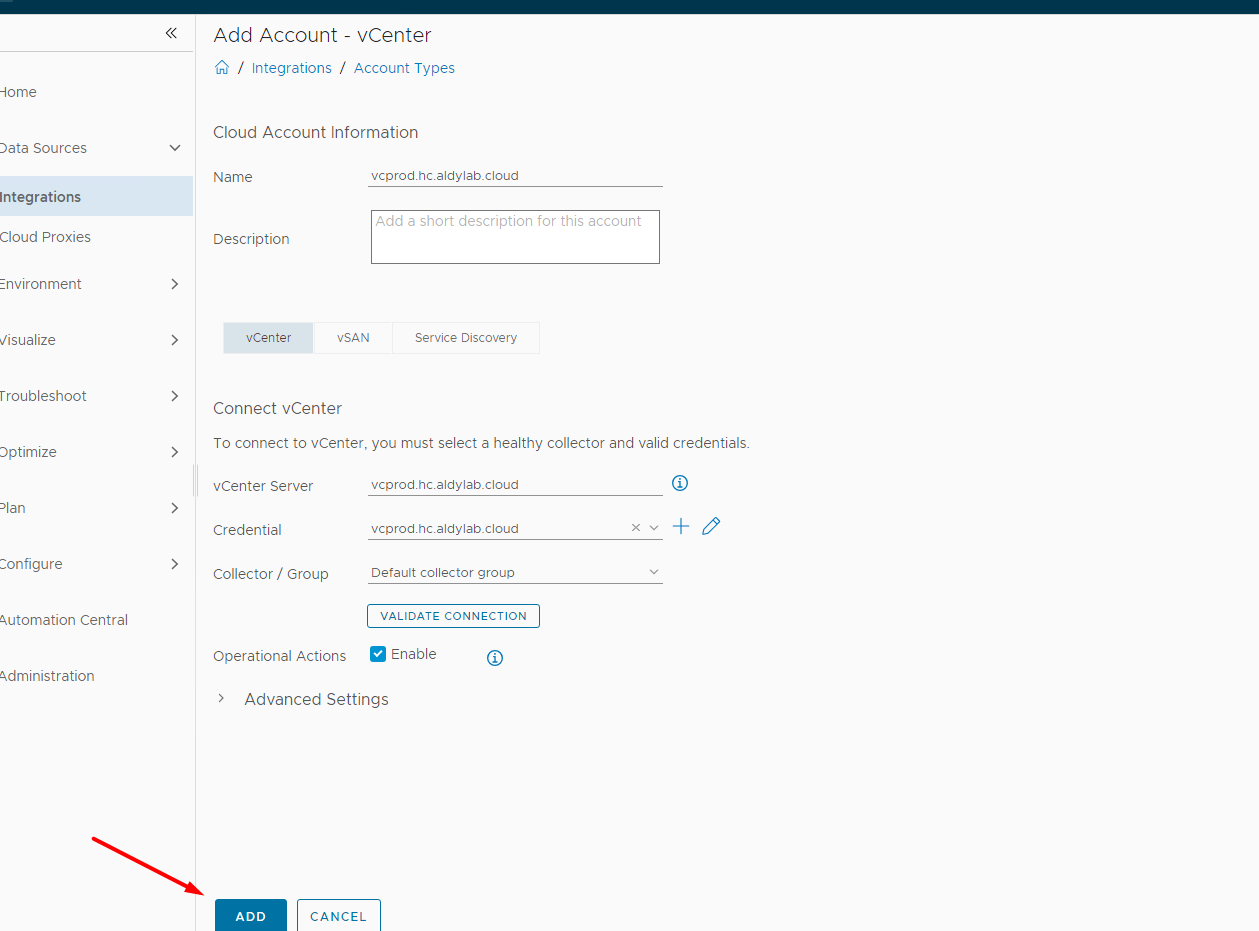
33. Select Validate Connection to check the connection with the vCenter server. Everything looks good, so click OK and then Add button.
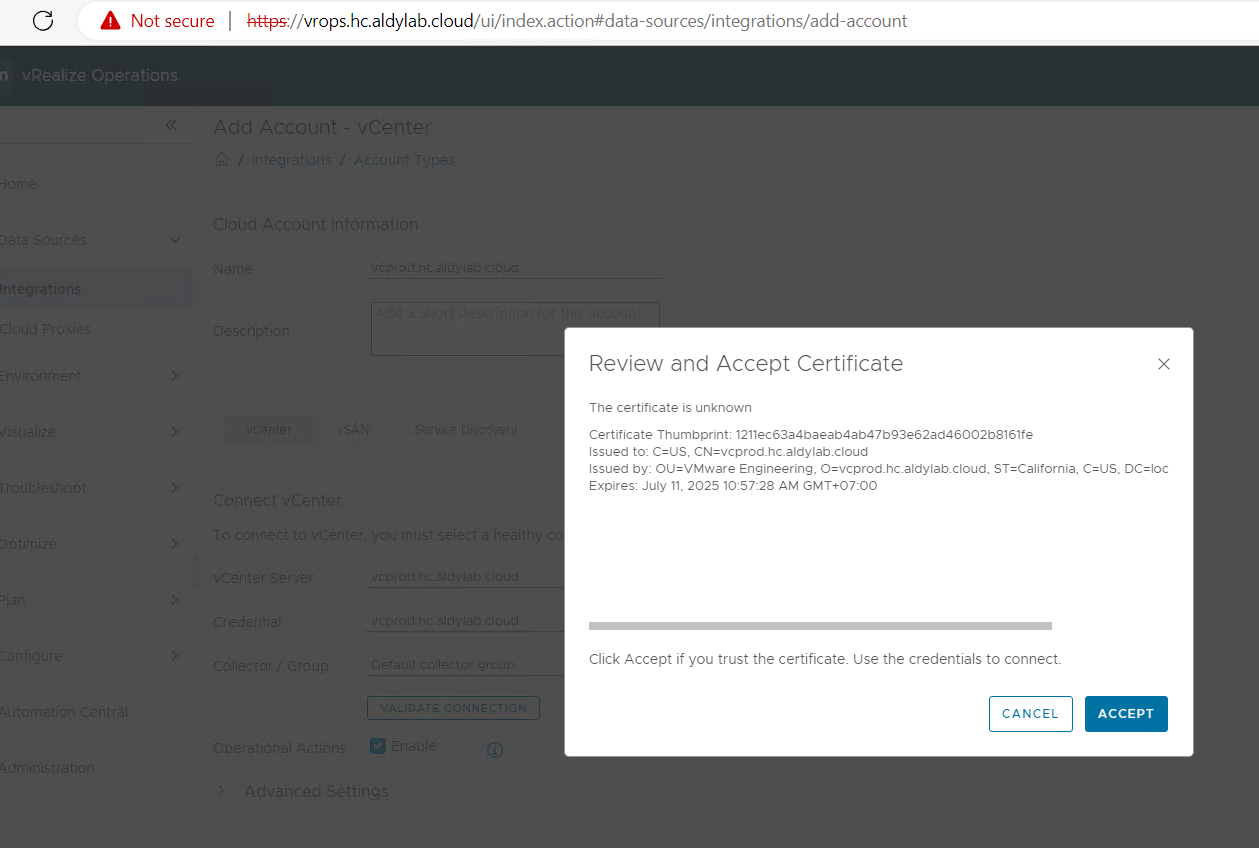
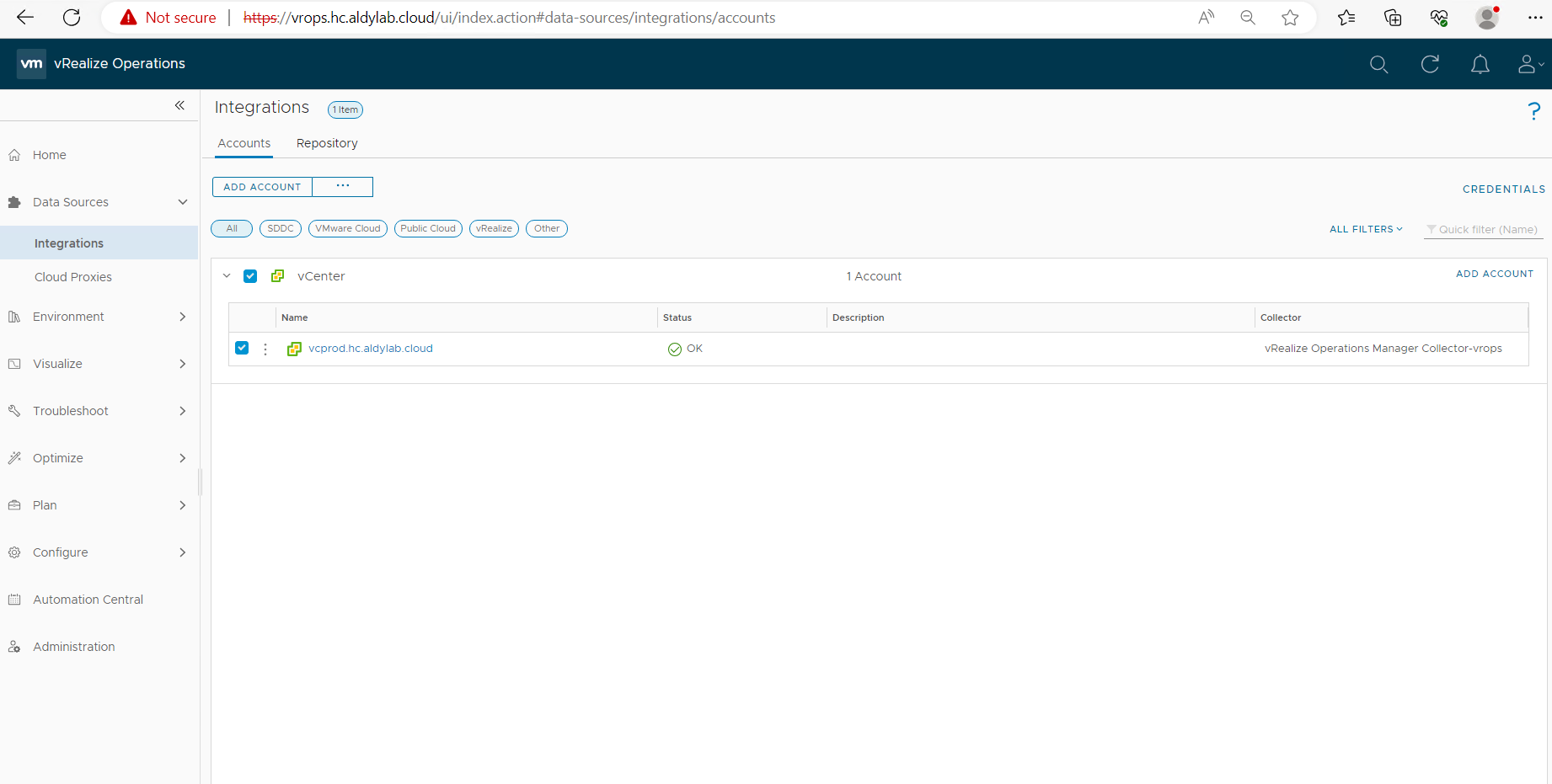
34. As you can see, vCenter was successfully added and sync to vRealize Operations.
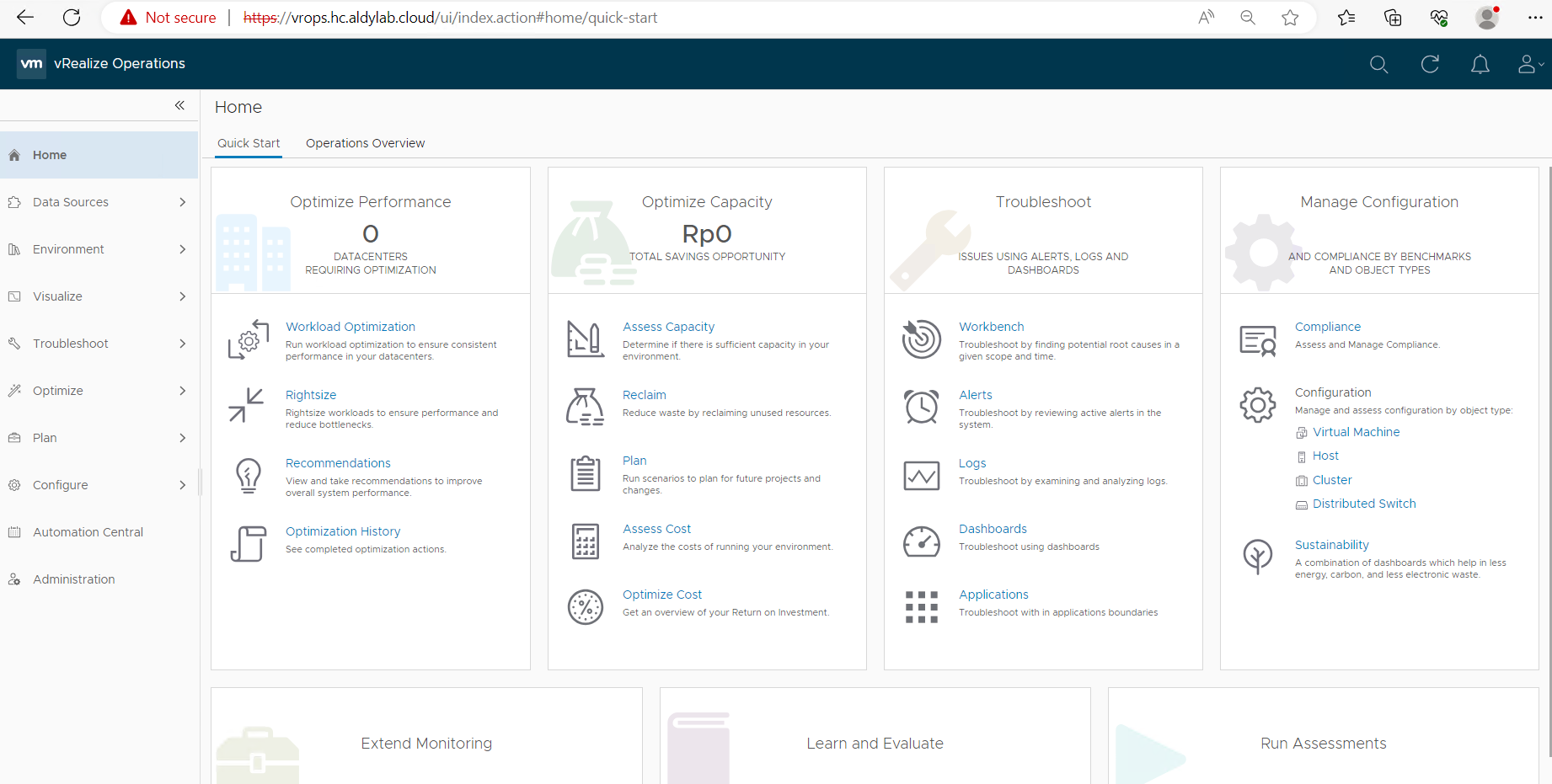
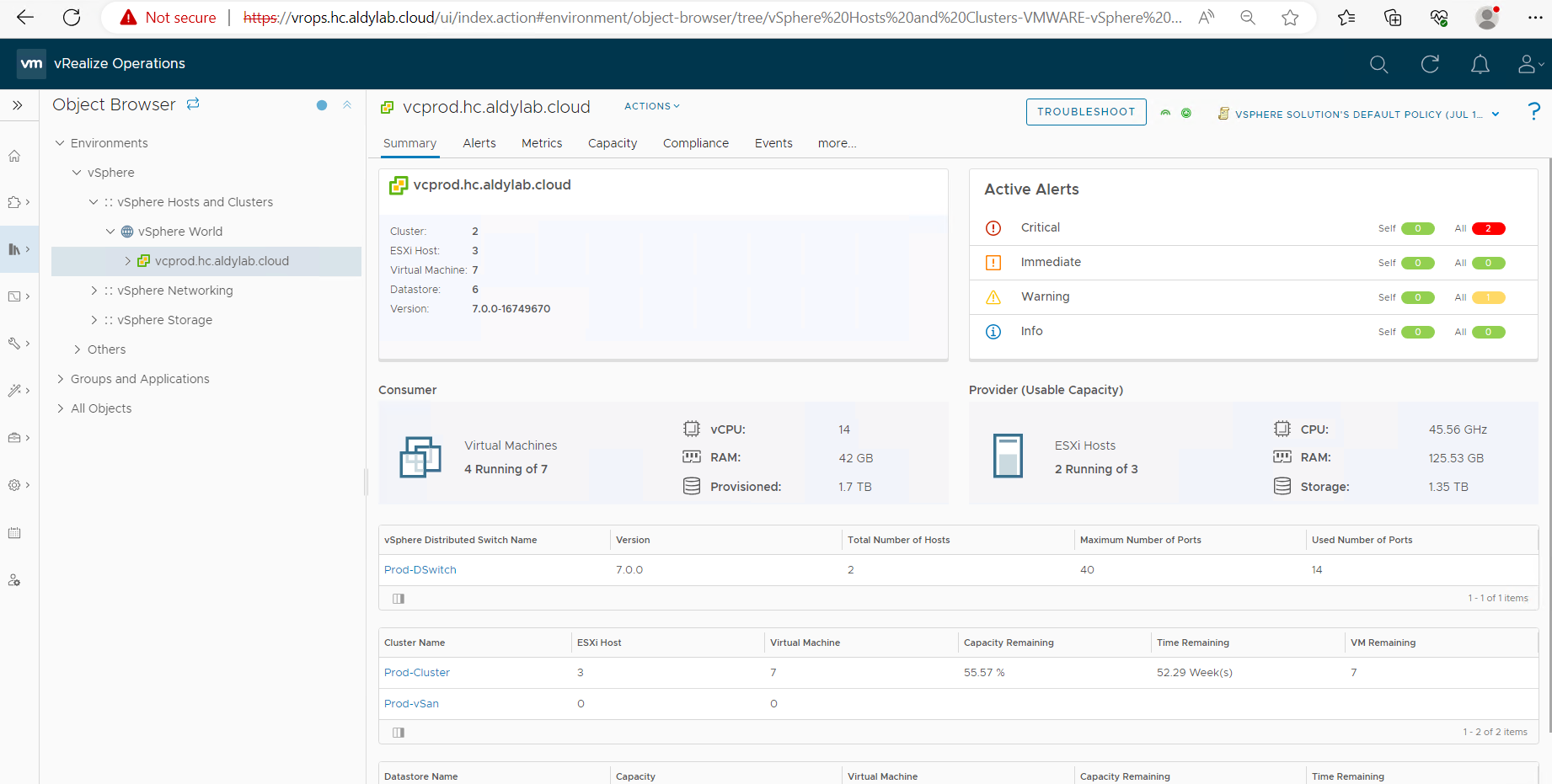
35. Lets check dashboard and review the page
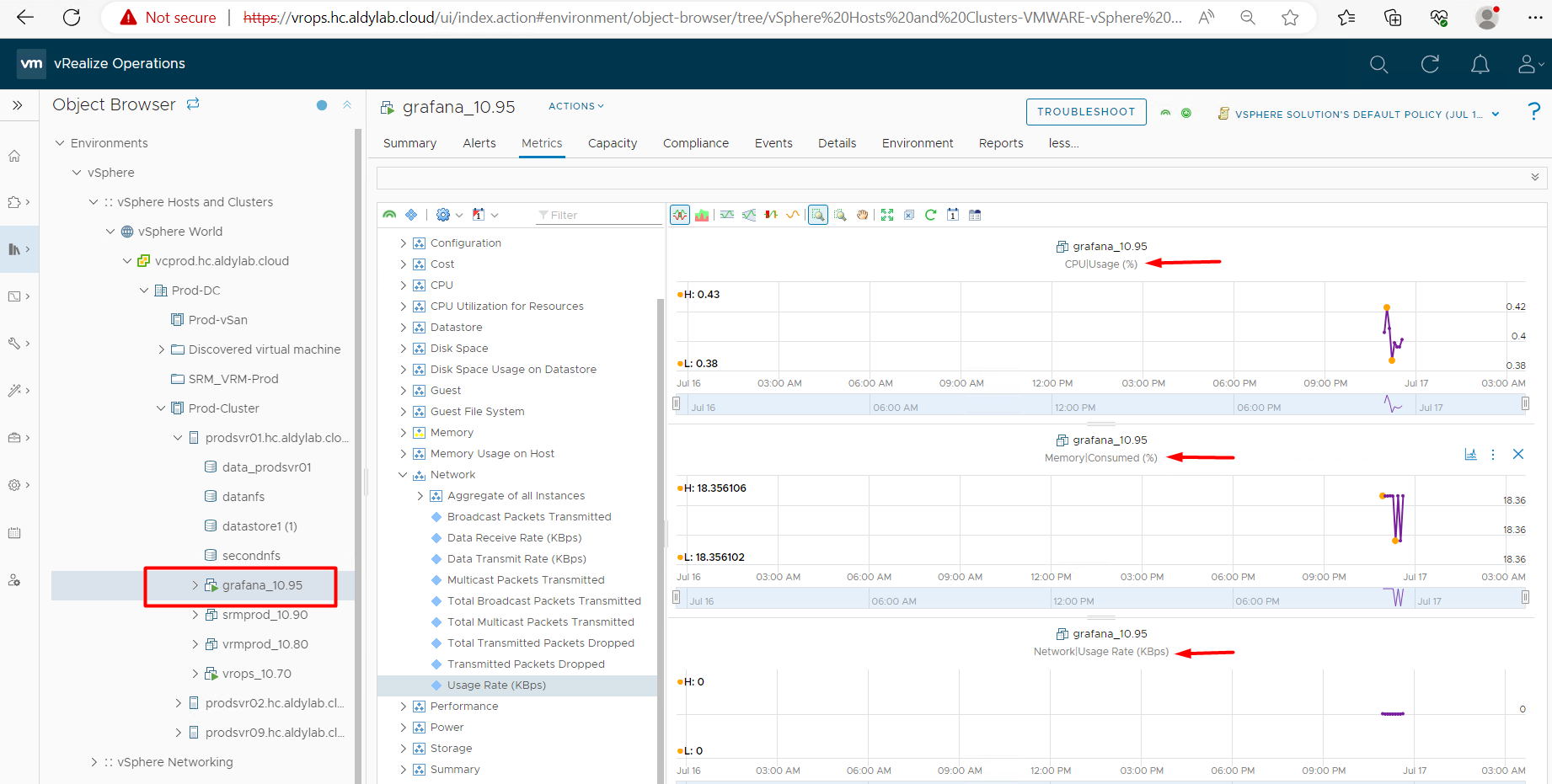
36. Lets see metric to monitor vm details resources load
 Finished, Thank you!
Leave a Comment